Code Generation
AutoaWeld allows you to customise the code generation (also known as post-processor) which creates robot programs from a Autoa project file.
Managing Generators
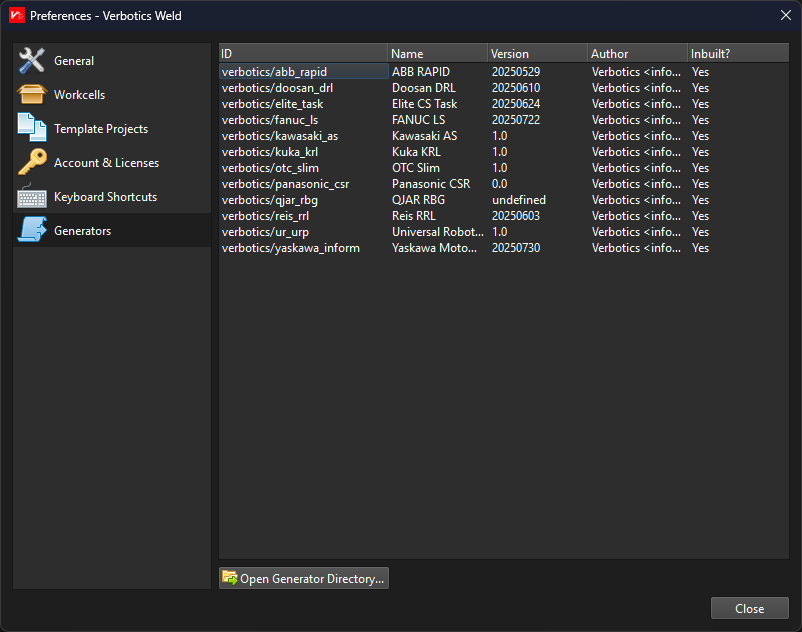
To view the code generators available, go to Edit > Preferences > Generators. You will be able
to see the inbuilt default generators (where Inbuilt is set to yes), as well as any custom
generators you have available.
Using a Custom Generator
Custom generators are JavaScript files .js placed into your application data directory. To use
a custom code generator provided to you, go to Edit > Preferences > Generators, and click "Open
Generator Directory". This will open a folder where you can place the provided .js file, and
it will automatically be recognised by AutoaWeld.
To use this generator in your project, go to Project Settings, then under "Program generator"
select the customised generator you want to use.
Creating a Custom Generator
To create a custom generator, you can create a .js file in the generator directory - for example
my_custom_generator.js. You can request us to provide a reference copy of the standard generator
for your robot which can reference when customising your generator. Each generator file must export
an object called metadata with information about the generator, as well as a Generator class.
It is recommended that you import the default Autoa generator for your specific robot as a base class, and only customise the specific functions you need. This means that any other improvements to the inbuilt Autoa generator which you have not customised will not require you to update your generator.
As an example, here is a minimal customisation of the inbuilt FANUC LS generator which replaces the weld arc on and off instructions with a custom command.