Generate Code
Welds that have been successfully planned with the Plan dialog are able to be converted into a program for the cell's robot using the Generate Code  button found in the ribbon menu.
This button will only be enabled if a valid license has been applied to Weld by logging into your Autoa Account. Demo versions of the AutoaWeld software won't have this feature enabled.
Clicking the Generate Code button will load a window containing options for generating and exporting code.
Generate Program Menu
Generate Program Menuï
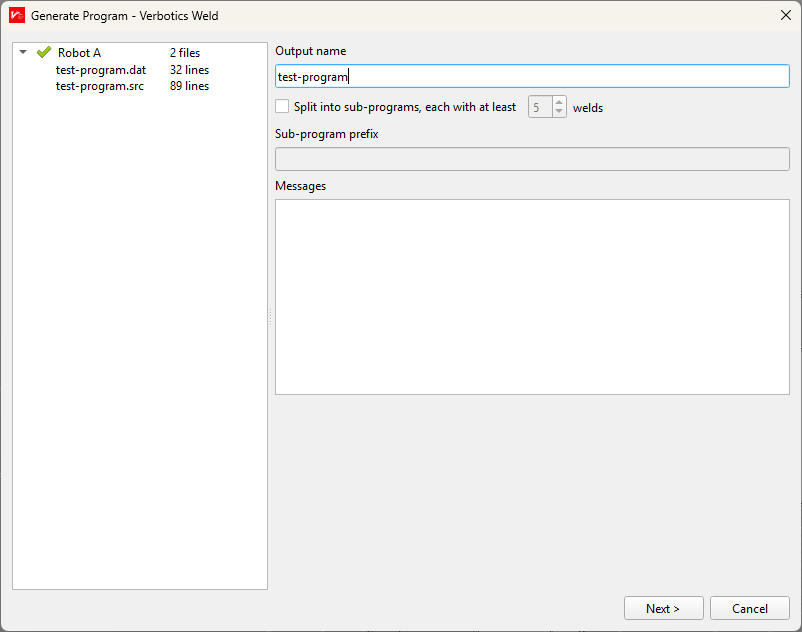
The Generate Program menu consists of several pages of pages. The first page is split into 2 sections. On the left, is a column listing each robot contained in the current project that has planned welds to generate into code.
Listed Robots included in the Code Generationï
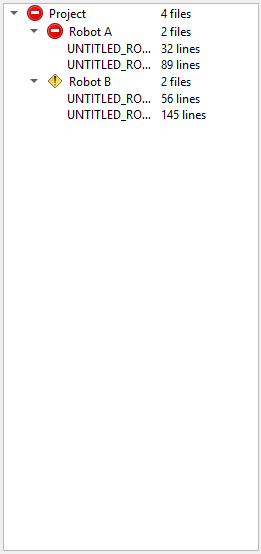
Each robot will have the programs generated for that robot listed beneath. Selecting these programs with open a preview of the selected program on the right.
When the menu first loads, and whenever a robot is selected from the list, options and other details relating to code generation are displayed on the right. These include:
- Output Name: The name to be given to each file generated.
- Sub-program prefix: The prefix to be added before each sub-program. Disabled if the current project won't be generating sub-programs.
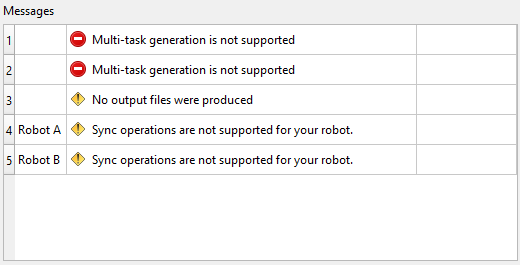
- Messages: Lists errors and warnings with the weld program being generated. Proceeding without fixing the listed issues may result in the generated program not operating as expected.
Errors and Warnings with Code Generationï
At the bottom of the window, are the Next and Cancel buttons. Next will load the second page of the Generate Program menu.
The second page lists 2 options for selecting the location to save the generated files to:
- Save to a directory: Saves to the location specified in the text-box. The
...button can be used to browse to the save location using the computers file browser. - Transfer to Robot: If your robot and cell supports this feature, the generated program can be sent directly to a connected robot.
Code Generators
In AutoaWeld, a code generator refers to a file used by Autoa to convert weld programs from the format used by Autoa into the format required for a given robot to run the program.
Autoa has built-in generators for all supported robot makes. A list of these makes can be found here.
In addition to built-in generators, Autoa may provide you with Custom code generators should your cell require it. Should your cell require a custom format for your robot, Autoa can provide consultancy services by contacting us here.
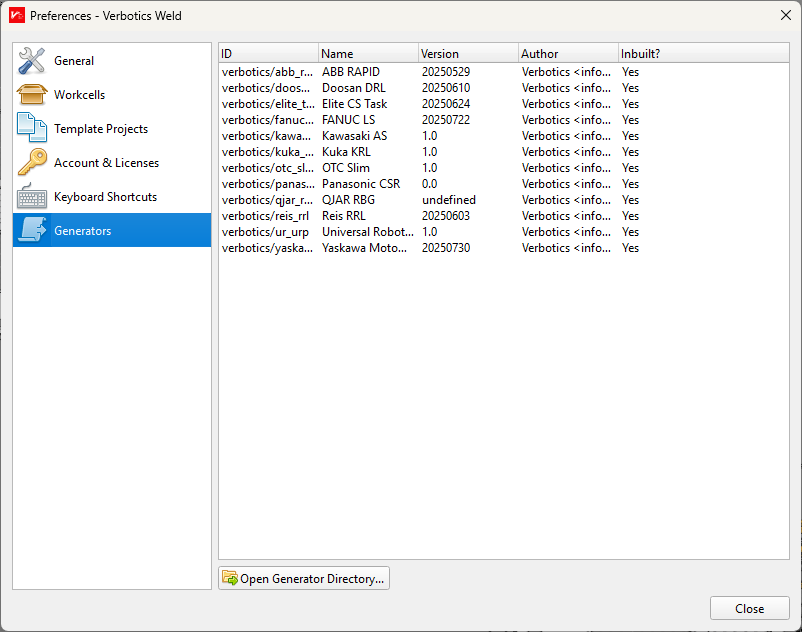
If a Autoa employee or integrator provides you with a custom code generator, this can be added to Autoa by navigating to Preferences->Generators->Open Generator Directory. This will open the generator directory in your file browser, where you can place the provided custom code generator.
Generator Preferencesï
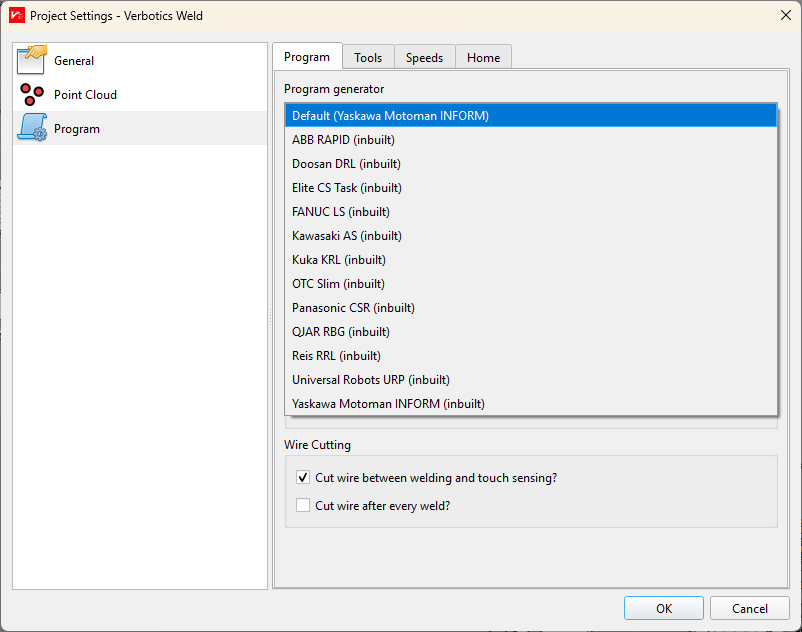
The code generator for your robot can then be swapped to a custom generator by opening a project you wish to generate code for, then navigating to Project Settings->Program->Program and then selecting the custom generator from the drop-down box at the top of the project settings menu. This drop-down box will list all code generators currently available to use.
Selecting Generator for Current Programï
Note
If your project uses multiple robots, you will need to apply the new generator to the program settings for each robot individually.